Knowledge Base
The Knowledge Base module serves as the context layer for Marketer AI. It is the place where users can enrich the system with the background information required to generate accurate, consistent, and tailored responses. As a result, Marketer AI can work not only with performance data and the current conversation, but also with knowledge about the company, project specifics, and business agreements.
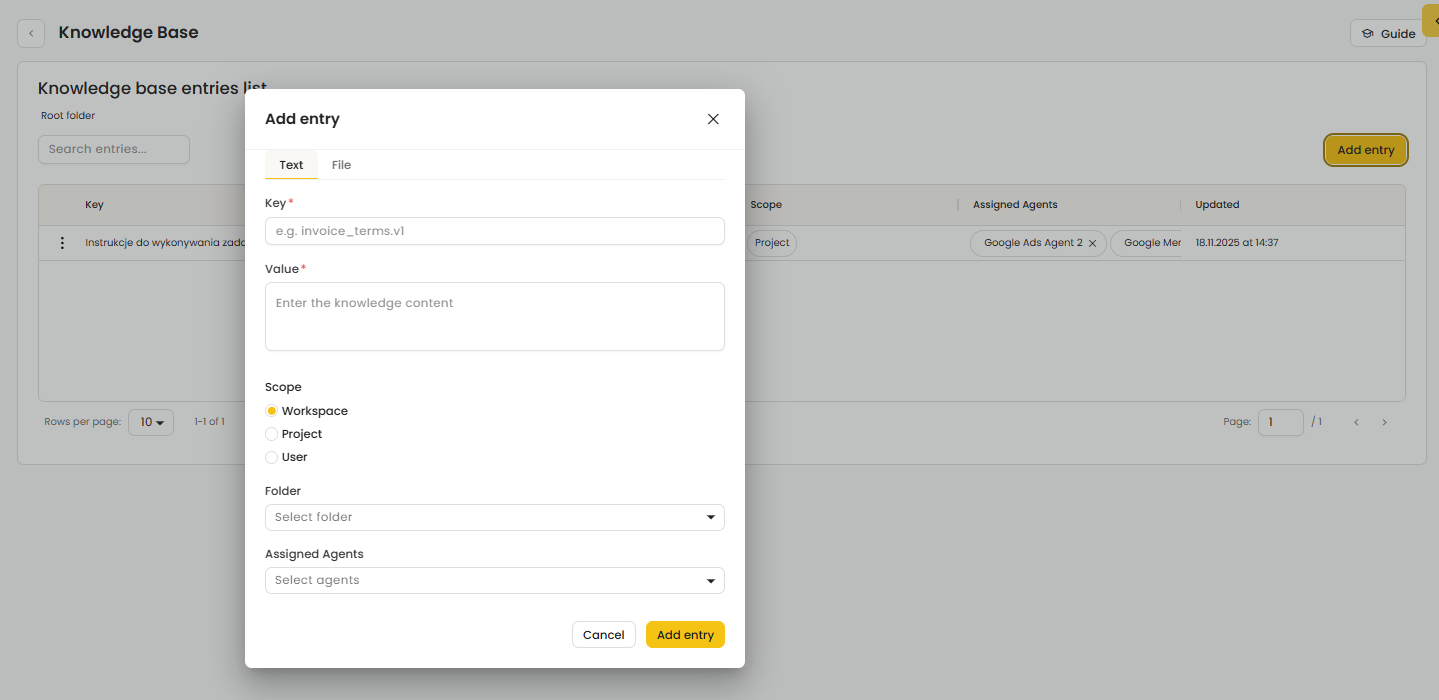
What can be added to the Knowledge Base? |
The Knowledge Base supports two types of content:
Entries (notes) created manually,
Files (e.g., briefs, strategies, client descriptions, project agreements, internal documents).
What type of information is worth adding?
Users can include, among others:
company and industry information,
marketing and business goals,
KPIs and targets,
communication strategy and key marketing assumptions,
target audiences (segments, personas),
campaign assumptions and execution guidelines,
product/offer information and competitive advantages,
client agreements and broader project context (e.g., priorities, constraints, seasonality).
Why is it important?
With the Knowledge Base in place, Marketer AI does not respond in generic terms—it relies on real information about the client and their objectives. This results in recommendations that are:
more precise and actionable,
aligned with the adopted strategy and agreed assumptions,
better tailored to the needs of the user, the company, or a specific project.
Adding content to the Knowledge Base |
To add new content to the Knowledge Base, open the Knowledge Base module and click “Add entry”. This will open a form where you can provide the required information.
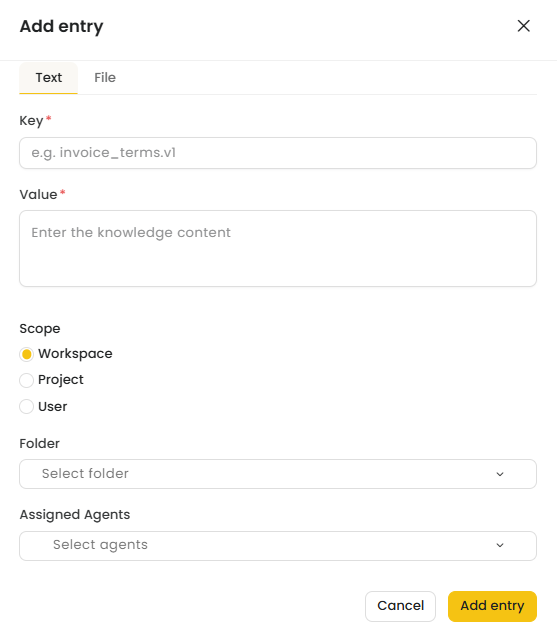
1) Choose the entry type
At the top of the dialog, select how you want to add content:
Text – add a note-style entry,
File – upload a document as an attachment.
2) Fill in the required fields
Complete the following fields:
Key* – a unique identifier for the entry (e.g., a topic name or reference key).
Value* – the actual knowledge content/context you want to store.
3) Define scope and organization (optional)
You can also specify:
Scope – where the entry applies:
Workspace (available across the entire workspace),
Project,
User.
Folder – optionally select a folder to keep entries organized.
Assigned Agents – optionally select which agents should use or prioritize this entry.
4) Save the entry
Click “Add entry” to save. To exit without saving, select “Cancel.”
Using Knowledge Base data in prompts |
To make Marketer AI use information stored in a specific file, simply reference the file name in your prompt and ask for the answer to be prepared based on that file’s content.
How to do it in practice
In your prompt, provide the name of the file Marketer AI should use.
Add a short instruction, e.g., “base your answer on this file,” “draw conclusions from the document,” or “summarize the data from the file.”
Example prompts
“Based on the file file name, prepare a summary of last month’s results.”
“Check the file file name for the KPIs and propose recommendations for next week.”
“Answer using the information from file name, taking into account the project assumptions and constraints.”
Was this article helpful?
That’s Great!
Thank you for your feedback
Sorry! We couldn't be helpful
Thank you for your feedback
Feedback sent
We appreciate your effort and will try to fix the article